Back
Completing your timesheet
Fill in a timesheet for each shift you work, once the shift has started.
Steps
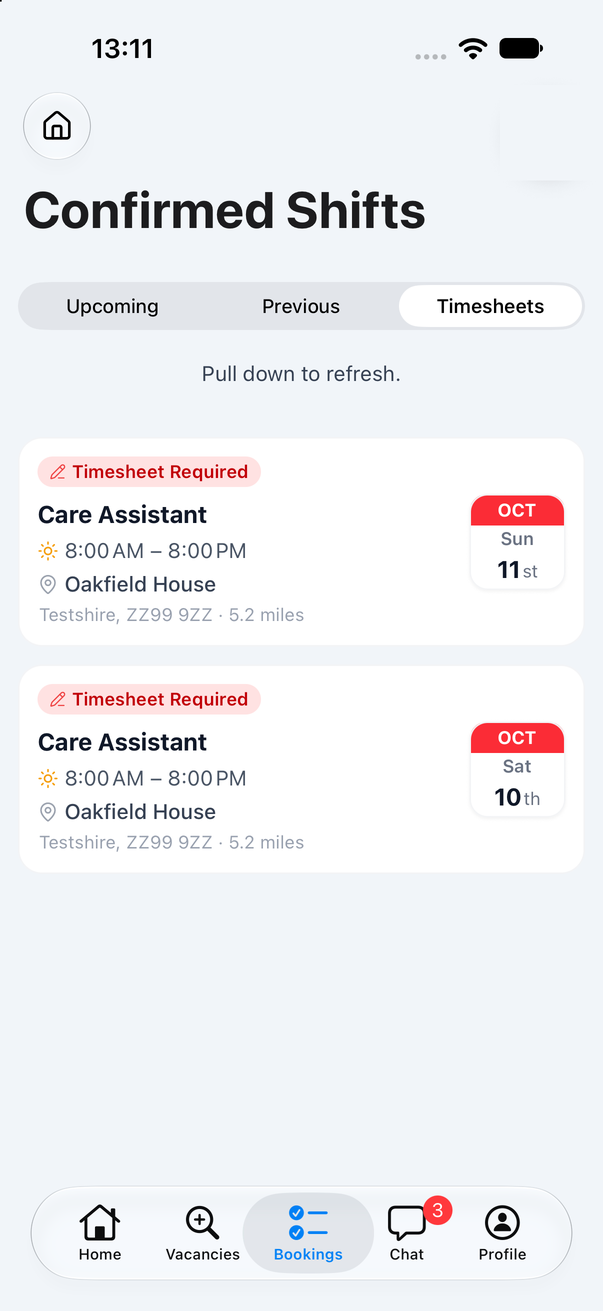
- Tap Bookings in the bottom bar. The screen is called Confirmed Shifts.
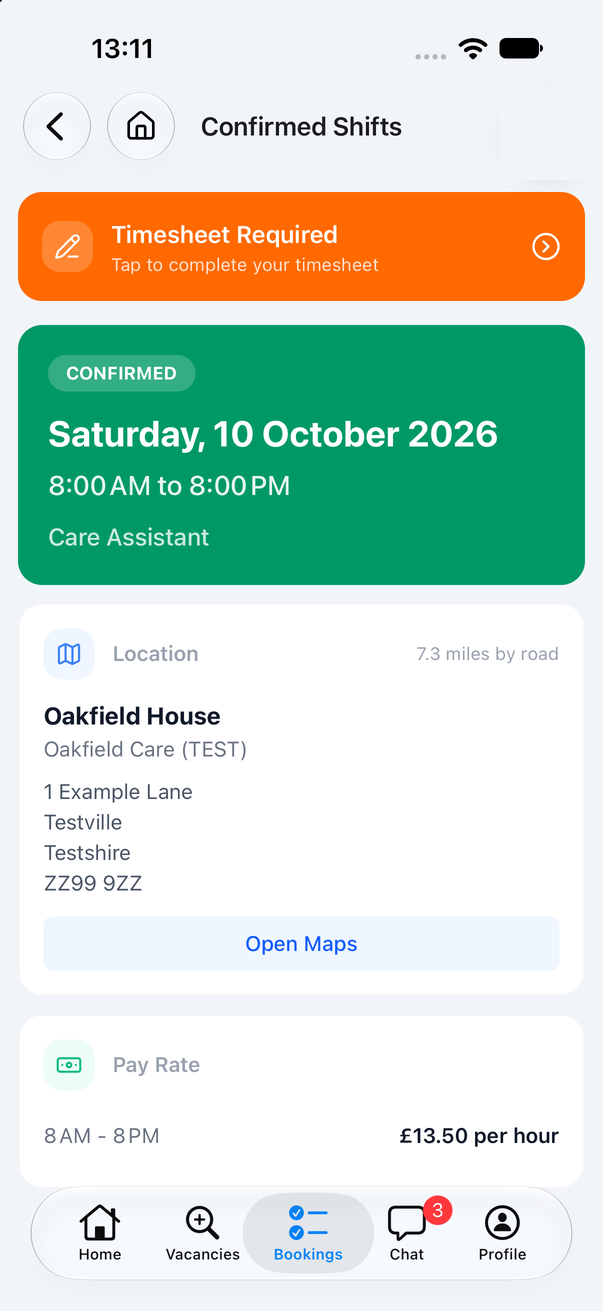
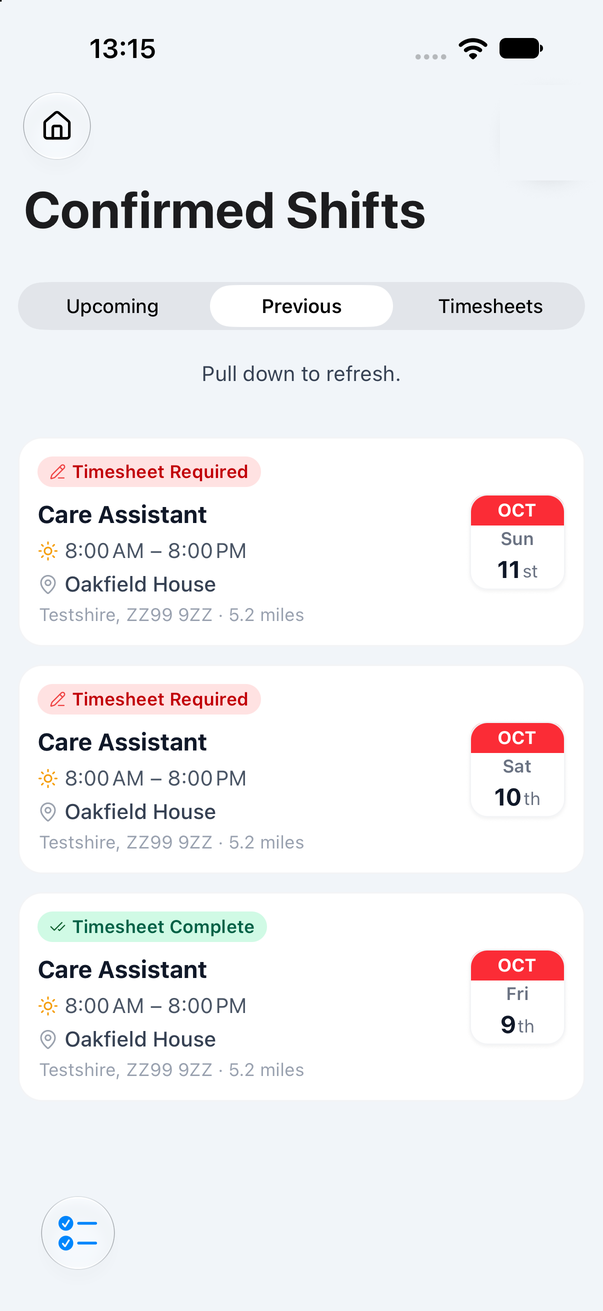
- At the top, tap Timesheets. This lists the shifts that still need a timesheet, each marked Timesheet Required.
- Tap the shift, then tap the orange bar at the top that says Timesheet Required - Tap to complete your timesheet.
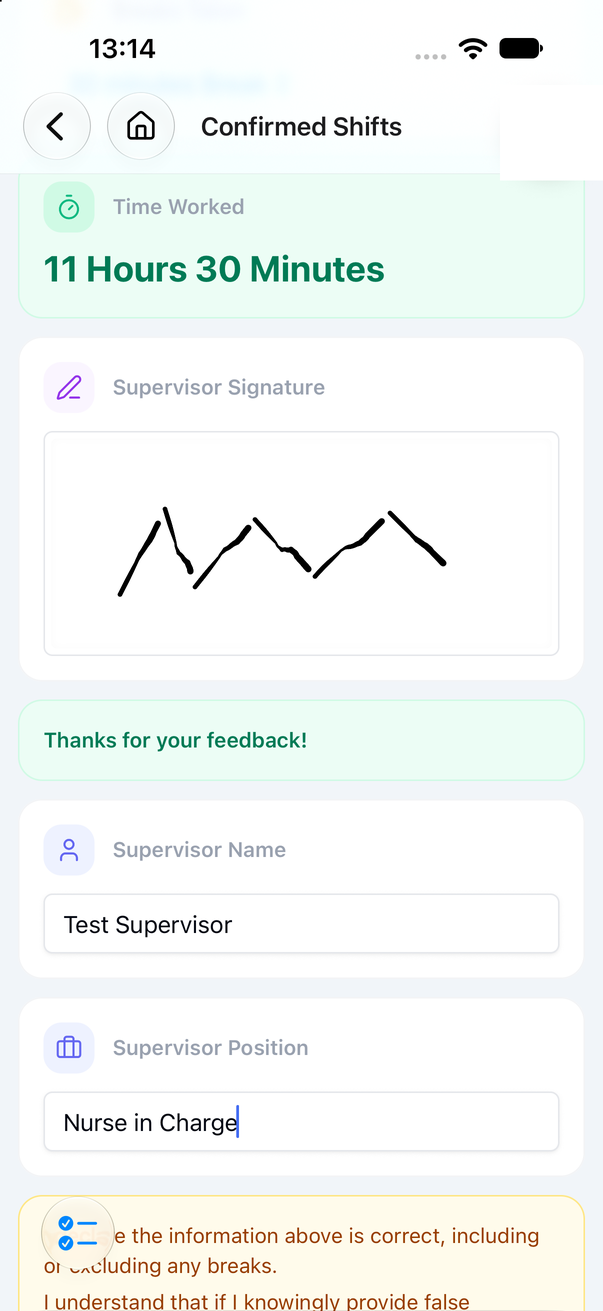
- Check your Start Time, Finish Time and Breaks Taken. Time Worked is worked out for you.
- If the form asks for it, your supervisor signs in the Supervisor Signature box and adds their name and position.
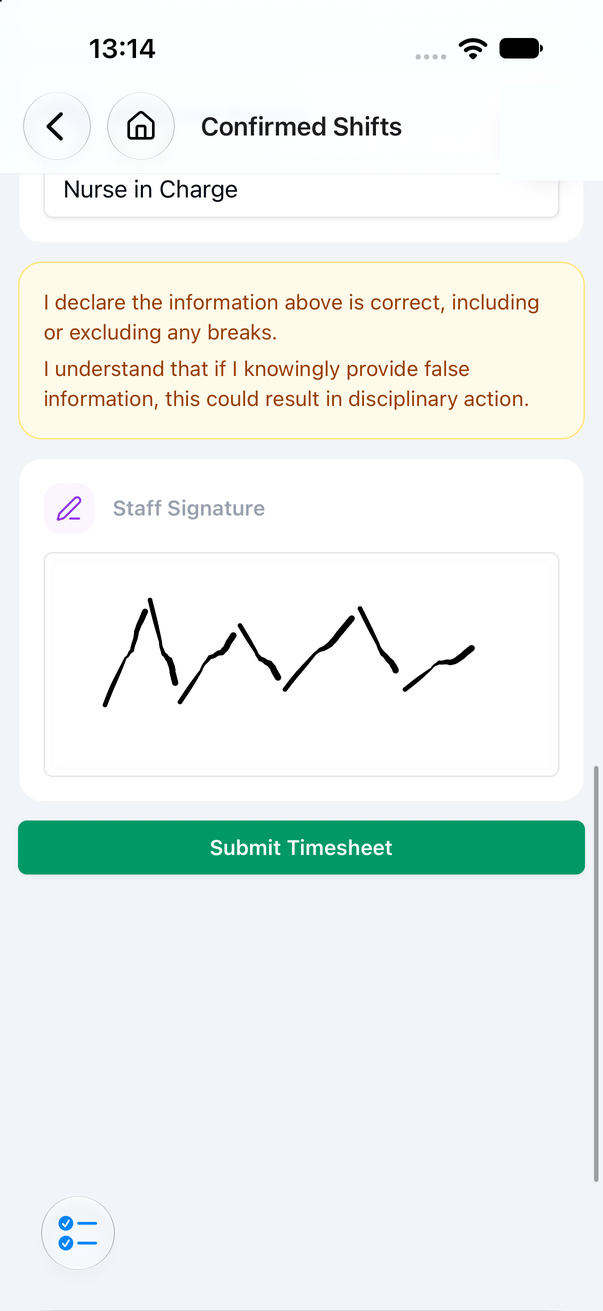
- Read the declaration, sign in the Staff Signature box, then tap Submit Timesheet.
Seeing a timesheet you have already sent
- Go to Bookings, then Previous.
- Tap the shift marked Timesheet Complete, then tap Timesheet Complete - Tap to view your submission.
Good to know
- The orange Timesheet Required bar only appears once the shift has started.
- If a shift is not under Timesheets, its timesheet may already be done (check Previous), or that shift may not need an app timesheet.
- If you cannot see the Bookings tab, contact your agency office.